
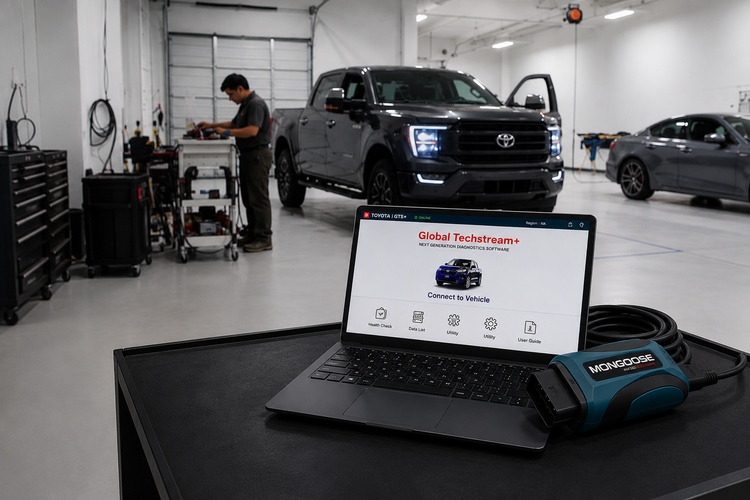
If you work on Toyota, Lexus, or Scion vehicles, you've probably hit the wall at least once: a customer brings in a car with a warning light, you need to run a health check or recalibrate an ADAS system, and your generic scan tool just doesn't go deep enough. Toyota's factory diagnostic software, Techstream, has long been the gold standard for accessing the full depth of these vehicles' systems. Techstream Lite is Toyota's solution for independent shops that want that same OEM-level access without paying full dealer-tool prices.
This guide covers what Techstream Lite is, what it takes to run it, how to get it set up, and what real-world quirks you should know about before you dive in. The Mongoose-Plus MFC3 cable that makes it all work is available through ADAS Depot.
What Is Techstream Lite?
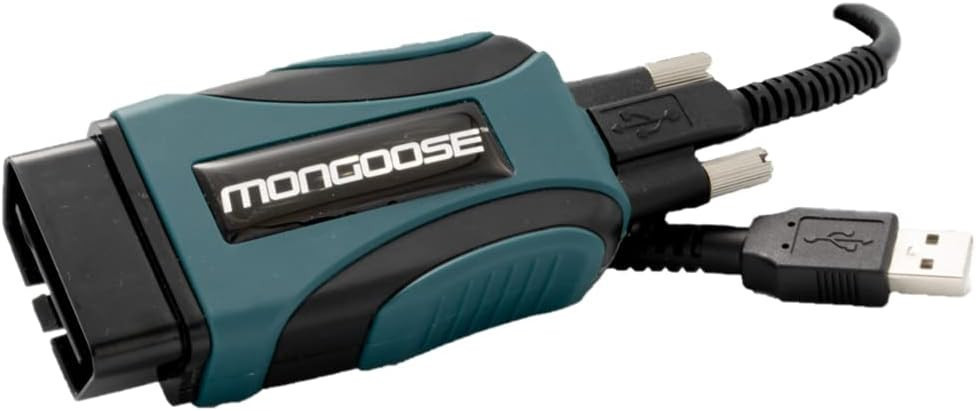
Techstream Lite is a diagnostic platform that gives independent shops access to the same Global Techstream+ (GTS+) software used by Toyota and Lexus dealerships. It runs on a standard Windows laptop, no proprietary hardware required beyond the Mongoose-Plus MFC3, a J2534-compliant vehicle interface module (VIM) that connects your laptop directly to the vehicle's OBD-II port.
Once connected, GTS+ gives you full access to DTCs, data lists, active tests, health checks, ECU reprogramming calibrations, and ADAS-specific utilities including radar beam axis adjustment and front recognition camera calibration tools. Coverage spans most 1996 and newer Toyota, Lexus, and Scion models. The one exception worth noting: 2020 and newer GR Supra requires an additional diagnostic cable.
Paired with GTS+ and your TIS credentials, the Mongoose-Plus MFC3 is what ties it all together. A TIS subscription gives you the technical library, reprogramming calibrations, and Identifix Direct-Hit access for Toyota/Scion/Lexus vehicles, and is managed through techinfo.toyota.com in yearly, monthly, or two-day intervals depending on your needs.
PC Requirements
You don't need a specialized computer, but your laptop needs to meet some minimum specs. Toyota recommends at least an Intel i5 or Ryzen 5 processor, 8 GB of RAM, 256 GB of disk space, and Windows 10 or 11 (64-bit only, older operating systems are not supported). The software is browser-based, so Chrome (v107+), Edge (v107+), or Firefox (v80+) needs to be installed, along with .NET 4.7.2. You'll also need admin rights for installation and a solid internet connection, 100 Mbps recommended, with 10 Mbps as the hard floor. GTS+ requires a constant internet connection to operate; it's not an offline tool.
One detail that catches people: the Mongoose-Plus MFC3 has separate 32-bit and 64-bit driver installers. Make sure you download the one that matches your system.
How Setup Works
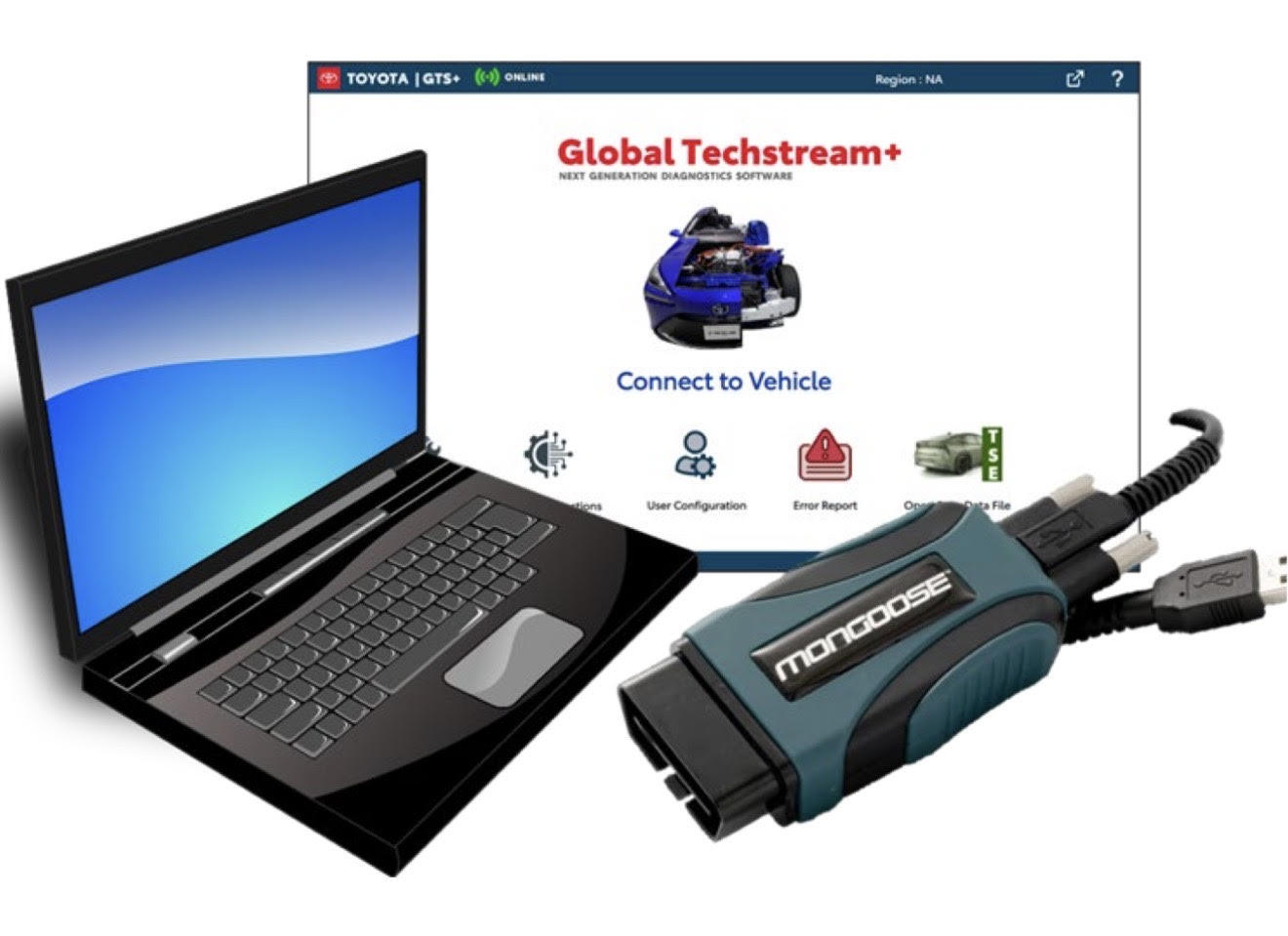
Installation breaks down into three steps: install the Mongoose-Plus VIM driver software, install GTS+ through Toyota's Agent Lite updater, then configure GTS+ with your VIM selection and TIS credentials.
The VIM driver comes from Toyota's TIS portal under TIS → Diagnostics → ScanTool. Download the installer, run it, accept the license agreement, and, this is important, plug in the Mongoose device only after installation completes, not before. Some units prompt for an activation step after plugging in, so don't skip that if it appears.
Agent Lite is a lightweight background application that manages GTS+ downloads and keeps the software updated going forward. After installing it, a prompt appears asking you to log in with your TIS credentials. Once authenticated, Agent Lite handles downloading and installing the full GTS+ package. The install can take up to 15 minutes and shows no progress indicator during that final stage, so don't assume it's frozen. A reboot is required when it finishes.
On first launch, GTS+ opens in your default browser and asks for your country, user type (Public User for aftermarket shops), and unit preferences. After that you select your VIM, Mongoose-Plus MFC3, and you're ready to connect.
To verify the setup, plug the Mongoose into both the laptop and the vehicle's OBD-II port, click "Connect to Vehicle" in GTS+, and run a Health Check. If you get a populated list of ECUs, communication is established and everything is working.
Known Issues (GTS+ Version 2023.04.003.02)
Toyota publishes a known bugs list with each GTS+ version, which is more transparent than you typically get from aftermarket scan tool companies. Here's what's currently on the list and how to work around each one.
Grand Highlander Recognition Camera Axis Adjust (Static Utility). The static calibration utility fails to complete on MY24 Grand Highlanders. Use the dynamic utility instead, specifically "Transition to Online Axis Alignment Mode." No fix ETA has been announced.
Printing. GTS+ has limited native print support. The browser's built-in Ctrl+P works for health checks and data lists. For CAN Bus Check printouts, enable "Headers and footers" and "Background graphics" in the print dialog before printing. The browser extension GoFullPage is also useful for capturing full-page screenshots when you need them.
GTS+ Launch/Login Issues. If GTS+ fails to launch or log in (outside of the PF error described below), first make sure TIS isn't logged in simultaneously on another PC. Then clear the browser cache, disable any pop-up blockers, close and reopen the browser, and try again.
Agent Lite "Failed to Download GTSPlus" Error. If Agent Lite displays a persistent download error in the lower right corner, uninstall Agent Lite entirely and reinstall it fresh from the TIS Diagnostics page.
Blank Yes/No Box During Vehicle Connectivity. A dialog box sometimes appears during vehicle connection with no visible text, just Yes and No buttons. Yes starts a Health Check; No takes you to the vehicle's main menu. Toyota is still investigating the root cause.
ECU Select from Health Check Results. Clicking an ECU from the Health Check results screen shows saved DTC data rather than live data. The workaround is to use the hamburger menu (three-line icon, top right of screen) to access System Select and navigate to the ECU from there.
Software Installation Issues on Windows 10. If GTS+ fails to start after installation, the issue is usually a conflict with certain Windows features. Go to "Turn Windows features on or off" and uncheck Hyper-V, Virtual Machine Platform, Containers, Windows Subsystem for Linux, Microsoft Defender Application Guard, and Remote Differential Compression API Support. Restart the PC and GTS+ should launch normally.
BSM Sensor Replacement (2023–2024 Prius, RX, Grand Highlander). After replacing a Blind Spot Monitor sensor on these models, the RoB code clearing function fails. A fix is in development.
Is It Worth It for Your Shop?
If you're doing any meaningful volume of Toyota and Lexus work, especially on vehicles from 2020 onward with advanced ADAS systems, the answer is yes. Generic scan tools won't give you access to ADAS calibration utilities, ECU reprogramming, or the system-level depth you need to properly diagnose and service these vehicles. The Mongoose-Plus MFC3, available through ADAS Depot, is the hardware that unlocks all of it.
